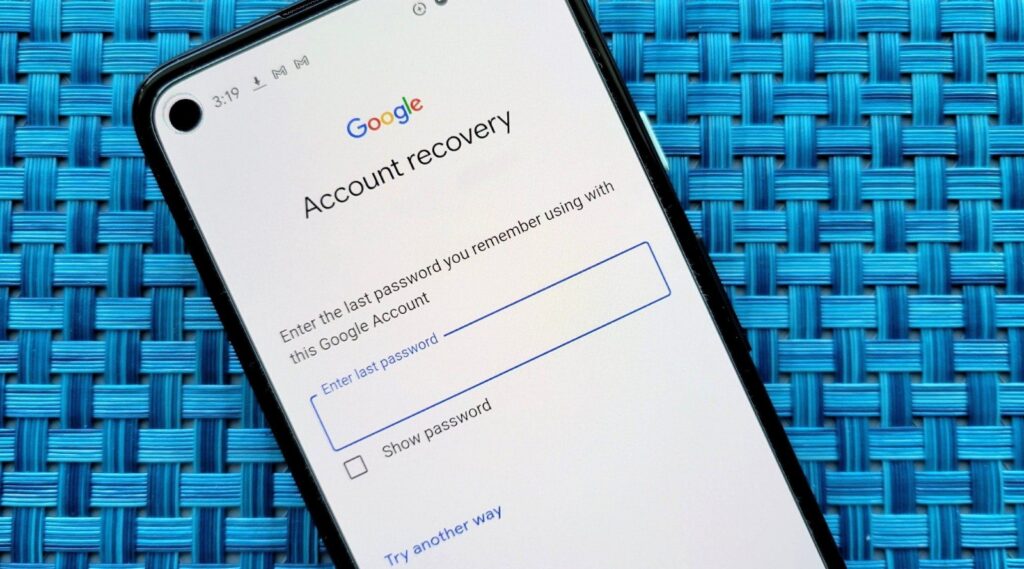
Quick Answer: If your Samsung tablet is stuck on the Google account verification screen after a factory reset, you can regain access by using a supported FRP recovery solution such as DroidKit (for compatible devices), recovering your original Google account, or asking the previous owner to remove their account.
This verification screen appears because of Factory Reset Protection (FRP), a security feature built into Android devices. FRP protects a Samsung tablet after a reset by requiring verification of a previously synced Google account.
The factory reset process has already erased local data stored on the tablet. The FRP screen does not restore deleted files; it only prevents setup until ownership is verified.
Check Before Removing Google Account Lock
Before trying any recovery method, confirm:
- You are the device owner or have authorization to access it. FRP exists to protect devices from unauthorized use.
- Your Samsung tablet model and Android version. Recovery options can vary depending on the device and security patch.
- A USB cable and computer are available if required. Some supported recovery workflows need a Windows PC or Mac.
Method 1: Use DroidKit FRP Recovery for Supported Samsung Tablets
When official account recovery is unavailable and you are the authorized owner, a guided PC-based FRP recovery workflow can provide a more structured solution.
DroidKit offers an FRP recovery feature designed for supported Samsung tablets. Instead of relying on outdated manual tricks, it provides step-by-step instructions through a computer-based process.
The general workflow includes:
1. Install DroidKit on a Windows PC or Mac.
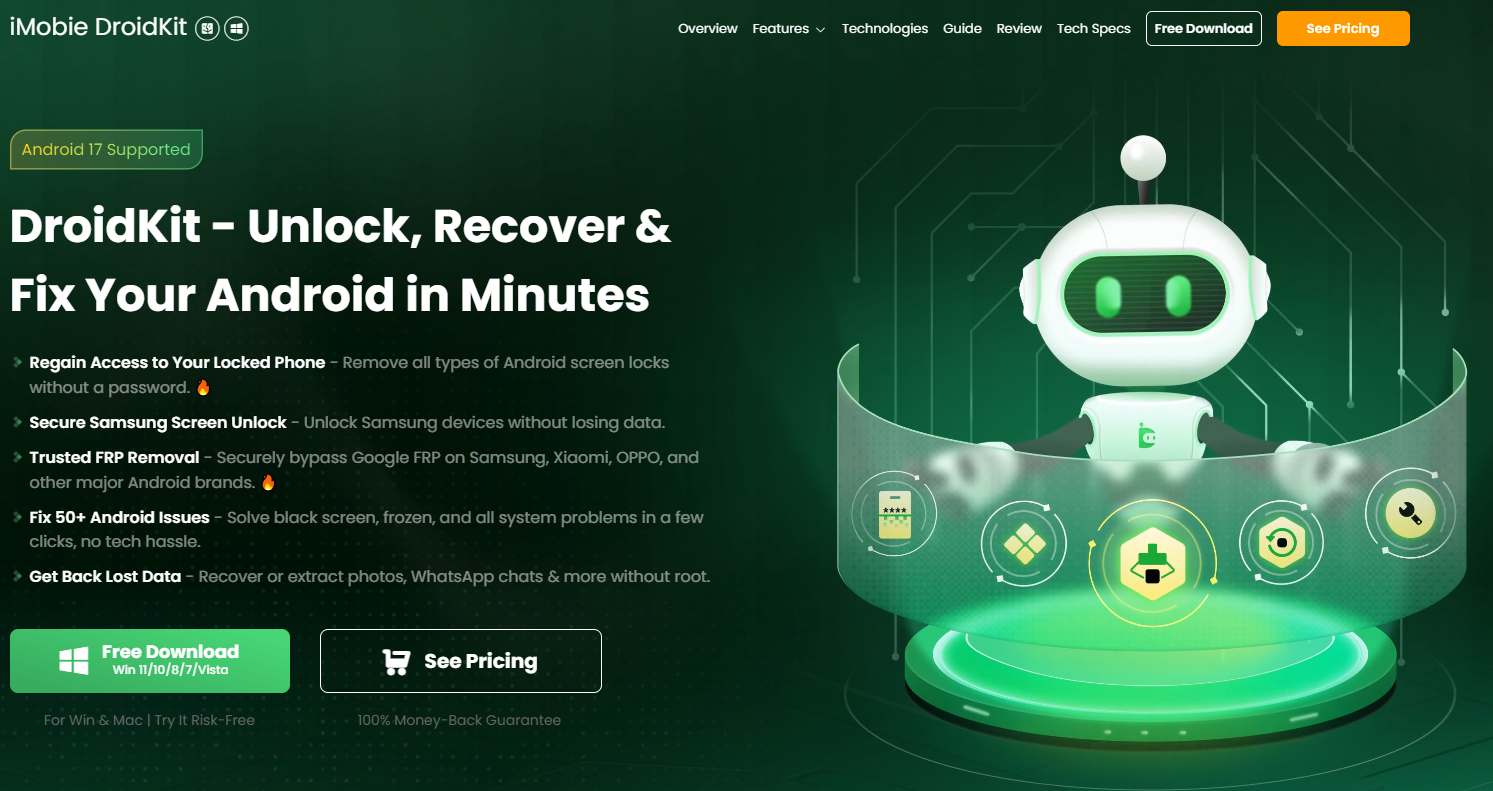
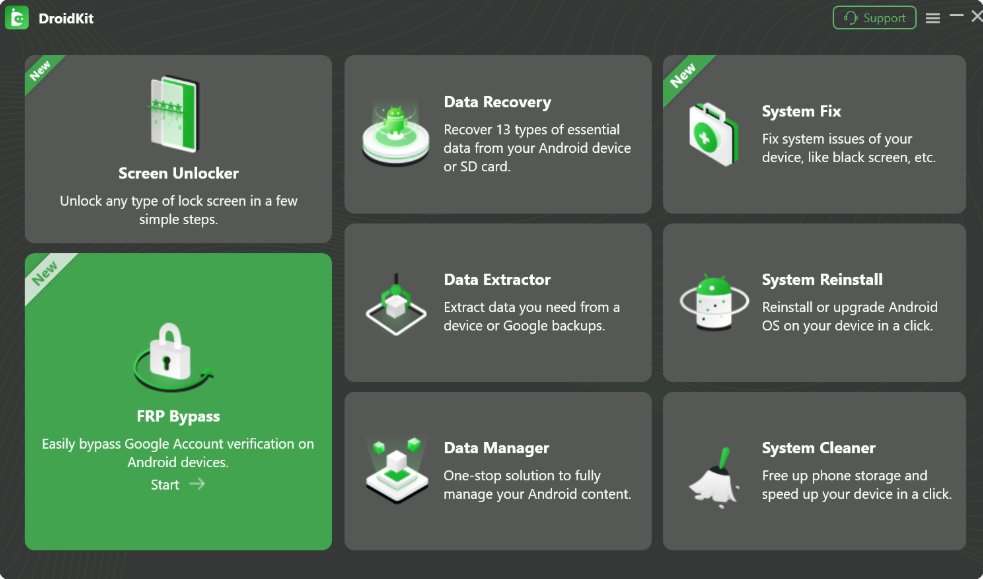
2. Open the FRP recovery feature.
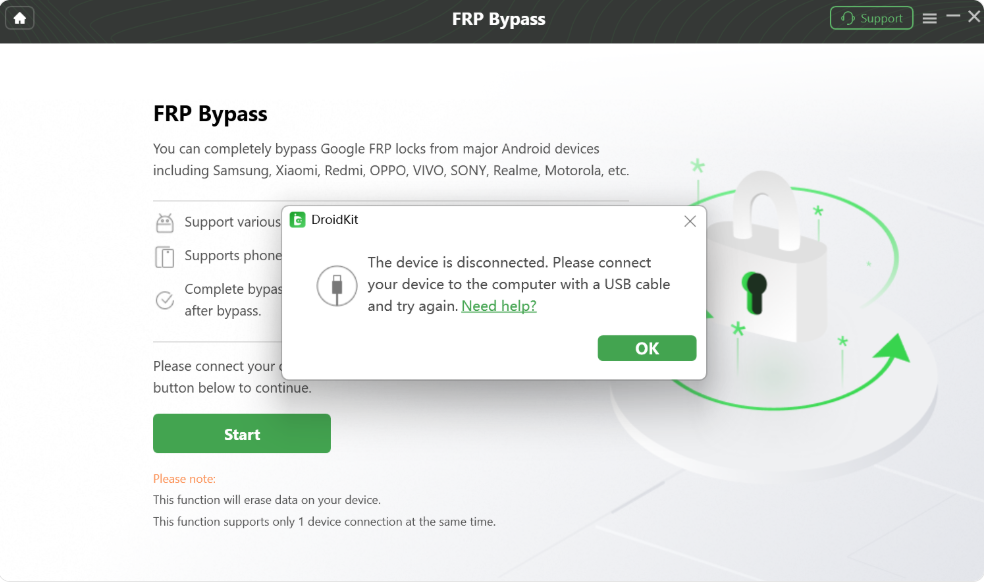
3. Connect your Samsung tablet with a USB cable.
4. Follow the instructions provided for your specific device model.
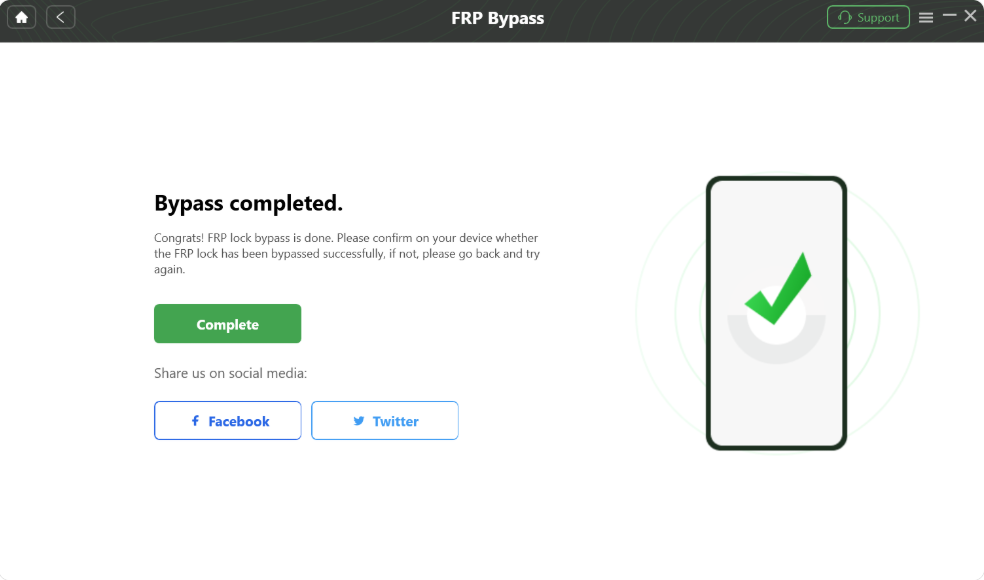
The exact process depends on your Samsung tablet model, Android version, and security patch level. Before starting, check whether your device is supported. A PC-based workflow is usually easier to follow than manually testing outdated FRP methods because Android security updates frequently change which approaches are available.
Method 2: Recover Your Original Google Account
If you still have access to the Google account previously used on the tablet, account recovery is the safest option.
Follow these steps:
- Use another phone or computer to recover your Google account.
- Reset your password if necessary.
- Sign in on your Samsung tablet with the verified account.
After changing your password, Google may apply a temporary security delay before the account can be used for device verification.
Method 3: Ask the Previous Owner to Remove Their Account
If you purchased a used Samsung Galaxy Tab and the device asks for someone else’s Google account, the previous owner needs to remove the device from their account.
The previous owner can:
- Sign in to their Google account.
- Remove the Samsung tablet from their connected devices.
- Restart the tablet and complete setup.
This is the preferred solution for secondhand devices because it confirms the ownership transfer.
Why Many “No PC” FRP Methods Fail
Many online tutorials describe methods involving hidden settings, TalkBack features, emergency dialer codes, or unknown APK files. Some older techniques worked on previous Android versions, but Samsung frequently updates security protections that block these approaches.
Downloading unofficial FRP tools or random APK files can also create security risks. A structured recovery process is generally more reliable than repeatedly trying outdated tricks.
| Recovery Option | Success Chance | Skill Level | PC Needed | Risk |
| DroidKit FRP recovery (supported devices) | Depends on compatibility | Low to Medium | Yes | Lower |
| Google account recovery | High if you own the account | Low | No | Lowest |
| Previous owner account removal | High | Low | No | Lowest |
| Manual “no PC” methods | Often unreliable | High | Usually No | Higher |
Frequently Asked Questions
How do I remove Google account lock from a Samsung tablet after reset?
The best approach depends on your situation. If you own the original Google account, recover it first. If account recovery is unavailable and you own the tablet, check whether a supported FRP recovery tool works with your device.
Can I remove Samsung FRP without a computer?
Some older manual methods existed, but many have stopped working because of newer Samsung security updates. A computer-based recovery process may be required for supported devices.
Will FRP removal delete my data?
The factory reset that triggered FRP already removed local files from the tablet. The FRP verification screen itself does not cause additional data loss.
Can I remove a previous owner’s Google account from a used Samsung tablet?
The previous owner should remove the device from their Google account whenever possible. If you legally purchased the tablet and cannot contact them, a supported recovery option may be available.
Does the emergency dialer FRP method work on newer Samsung tablets?
It depends on the Android version and security patch level. Many emergency dialer methods have been blocked on newer Samsung devices.
Final Thoughts
A Samsung tablet asking for Google account verification after a reset is usually caused by Factory Reset Protection. Start by confirming ownership and choosing the recovery path that matches your situation.
For supported devices, a guided FRP recovery workflow can provide a clearer alternative to unreliable manual methods. If you still have access to the original Google account or previous owner information, those official options remain the safest ways to restore access. For users who need a guided recovery process, DroidKit provides an easy-to-follow FRP recovery solution for supported Samsung tablets.